
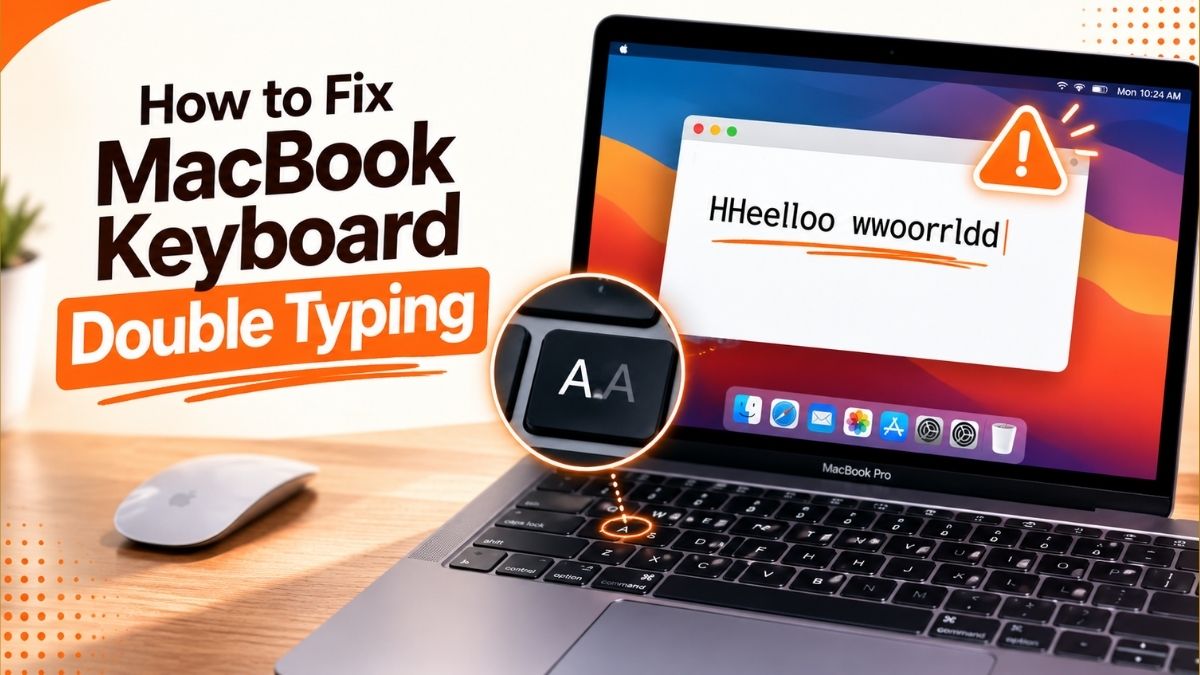
How to Fix MacBook Keyboard Double Typing (Stop Repeated Letters)
A step-by-step troubleshooting guide for when your Mac types “helllo” instead of “hello” — from a two-minute settings fix to knowing when it’s actually a hardware problem.
By Oyekale Olawale
Quick Answer
Most double-typing on a MacBook is caused by macOS reading a normal keypress as a held-down key. Go to System Settings > Keyboard and drag Key Repeat toward Slow and Delay Until Repeat toward Long, then confirm Sticky Keys and Slow Keys are off under Accessibility > Keyboard. If specific keys still double-type after a restart, sticky debris under the keycap or a worn switch is the more likely cause, and that points to a physical repair rather than a settings fix.
Free 20-Minute Troubleshooting Checklist
Get my printable checklist for diagnosing any Mac hardware issue — keyboard, trackpad, battery, or display — in under 20 minutes, before you book a repair appointment.
Send Me the ChecklistI’ve spent more hours than I’d like to admit staring at a MacBook typing “neeeed” instead of “need.” It usually starts small — one letter, once in a while — and then it’s every third word by the end of the week. The good news is that the fix is almost always faster than the Genius Bar appointment you were about to book.
Why Your MacBook Types Letters Twice
Double typing has two completely different root causes, and mixing them up is why so many people waste a week trying the wrong fix.
Software-side, it’s a timing problem. macOS decides how long a key has to be held before it starts “repeating” a character, controlled by the Key Repeat and Delay Until Repeat sliders in System Settings. If Delay Until Repeat is set too short, a completely normal, quick tap can get misread as the start of a held key, and macOS fires off a second character before you’ve even lifted your finger. This is the most common cause I see reported, and it costs nothing to test.
Hardware-side, it’s contact bounce. Under every key sits a switch mechanism — a scissor switch on current MacBooks, or the older, more failure-prone butterfly switch used on most 2016–2019 MacBook Pro and MacBook Air models. When dust, crumbs, or a hair get lodged under the keycap, or the switch contacts wear unevenly, a single press can physically register as two electrical signals. No macOS setting will fix that, because the keyboard itself is sending duplicate signals before the OS ever sees them.
| Symptom | Likely Cause | Fix Type |
|---|---|---|
| Random letters double, changes day to day | Key Repeat / Delay Until Repeat set too aggressive | Software |
| Only happens in one app (e.g. a chat app or code editor) | App-level autocomplete or key-remap conflict | Software |
| Same 1–3 keys double every single time | Debris under those specific keycaps | Cleaning |
| Doubling persists after settings reset and cleaning, on a 2016–2019 model | Worn butterfly switch mechanism | Hardware repair |
Step 1: Fix the Key Repeat Settings
This is where I tell almost everyone to start, because it solves the majority of cases I hear about and takes under two minutes.
- Open the Apple menu and choose System Settings.
- Click Keyboard in the sidebar.
- Find the Key Repeat slider and drag it one or two notches toward Slow.
- Find Delay Until Repeat just below it and drag that toward Long.
- Close System Settings — changes apply immediately, no restart needed yet.
Step 2: Turn Off Sticky Keys and Slow Keys
These two accessibility features are meant to help people who need extra time between keystrokes, but if they get toggled on by accident — which happens more often than you’d think, since Slow Keys can be triggered by holding a modifier key too long — they will absolutely cause typing to feel doubled or delayed.
- Go to System Settings > Accessibility > Keyboard.
- Confirm Sticky Keys is switched off.
- Confirm Slow Keys is switched off.
- If either was on, switch it off and restart your MacBook before testing again.
Step 3: Figure Out If It’s One App or the Whole System
Open TextEdit or Notes and type a full sentence at your normal speed. If letters double there too, you’re dealing with a system-level or hardware issue and should keep working through this guide. If typing is clean in TextEdit but doubles in one specific app — Slack and VS Code are common culprits because of autocomplete and custom key bindings — the problem is that app’s settings, not your keyboard. Check the app’s preferences for anything related to autocomplete, snippets, or custom shortcuts tied to the key that’s doubling.
Step 4: Clean the Keyboard
If it’s always the same one to three keys doubling regardless of what app you’re in, settings won’t touch it — you’re looking at debris under the keycap. Shut down the MacBook completely, hold it at roughly a 75-degree angle, and use a can of compressed air in short bursts across the keyboard, working left to right. Apple’s own support documentation recommends this exact angle-and-bursts approach rather than spraying straight down, since that can push debris deeper under the key rather than out. Avoid liquid cleaners near the keys; isopropyl alcohol on a cotton swab is fine for the surrounding case, not for going under keycaps on modern MacBooks, since most 2016-and-later keyboards aren’t designed for individual keycap removal the way older scissor-switch keyboards were.
Step 5: Restart, and Reset NVRAM if You’re on an Intel Mac
A simple restart clears out any input-handling glitch that’s built up in memory, and it’s worth doing after every change above. If you’re on an Intel-based MacBook, you can also reset NVRAM by restarting and immediately holding Option + Command + P + R for about 20 seconds. One thing worth being upfront about: if you’re on an Apple Silicon MacBook (M1 through M5), there is no NVRAM or SMC reset to run — Apple removed that step entirely on M-series Macs, and a restart already handles what NVRAM reset used to do on Intel machines. If you’ve seen a guide telling you to reset the SMC on an M-series MacBook, that step no longer applies to your machine.
Watch: Fixing Double Typing Step by Step
If you’d rather watch exactly where each setting lives, this walkthrough from Delft Stack covers the same Key Repeat and Accessibility steps above on screen.
Video credit: Delft Stack (YouTube)
Optional: Third-Party Tools for Persistent Cases
If a specific key still double-fires after cleaning and you’d rather not open a repair ticket right away, two free, open-source tools can add a software-level delay to individual keys:
- Karabiner-Elements — a general-purpose keyboard customizer that lets you set a minimum delay before a keypress is accepted as a repeat, on a per-key basis.
- Unshaky — built specifically for the butterfly-keyboard double-press problem, with a per-key delay you tune to your typing speed.
Both need Accessibility permissions in System Settings to work, since they intercept keystrokes at the system level. Treat these as a bridge while you decide on a repair, not a permanent fix for a genuinely failing switch — masking a hardware fault with software delay usually gets worse as the switch wears further.
✅ Software Fix Works When
- Doubling is random, not tied to one key
- It’s inconsistent day to day
- It only happens in one app
- It started right after a macOS update
❌ You Likely Need a Repair When
- The same 1–3 keys always double
- Cleaning and settings changes made no difference
- You have a 2016–2019 butterfly-keyboard MacBook Pro/Air
- A key feels physically different to press than the others
When It’s Actually a Hardware Problem
If you’ve worked through every step above and the same key or two are still doubling, it’s time to be honest about the cause. Apple’s butterfly keyboard, used across most MacBook, MacBook Air, and MacBook Pro models from 2015 through 2019, was genuinely more prone to this exact symptom because the mechanism has almost no vertical travel, so tiny amounts of dust under the key are enough to cause a double or missed keystroke.
One thing worth clearing up: Apple used to run a free Keyboard Service Program covering butterfly-keyboard repairs for four years from a Mac’s original purchase date. That program has since closed — Apple ended it in late 2024, once every eligible model had passed the four-year window — so if you’re on one of those older MacBooks now, a keyboard repair is out of pocket unless you have AppleCare+, rather than a free service claim. Scissor-switch keyboards on 2020-and-later MacBooks (including every Apple Silicon model) don’t use the butterfly mechanism and are considerably less prone to this specific failure, though dust and spills can still cause it.
When to see a professional: If the issue is hardware-related, or you’re not comfortable opening System Settings and testing accessibility permissions yourself, book time with an Apple Store Genius Bar or an Apple Authorized Service Provider rather than attempting a DIY keyboard repair. Opening a MacBook’s chassis yourself can void remaining warranty coverage and risks damaging the battery, which sits directly beneath the keyboard on most models.
How I Test This
I run this checklist on a 2021 M1 Pro MacBook Pro and an older Intel MacBook Air, deliberately setting Delay Until Repeat to its shortest option first to reproduce the doubling, then walking back through each fix to confirm it actually resolves it rather than just masking it for a few minutes. One quirk I ran into on macOS 26 Tahoe: the Keyboard settings pane occasionally takes a beat to visually update the slider position after you drag it, even though the change has already applied — if you drag it and the dot seems to snap back, give it a second before assuming the change didn’t save. On the Intel Air, holding Option-Command-P-R for less than the full 20 seconds sometimes released before the chime played twice, which meant the NVRAM reset hadn’t actually completed; if you’re not sure you held it long enough, just redo it.
FAQ
Why does my MacBook type letters twice when I only press once?
It’s almost always one of two things: macOS’s Key Repeat and Delay Until Repeat settings are too aggressive and misread a quick tap as a held key, or physical debris under a keycap is causing that switch to send two signals for one press.
Does resetting the SMC fix keyboard double typing on a MacBook?
Only on Intel-based MacBooks, and only occasionally. Apple Silicon Macs (M1 and later) don’t have an SMC reset option at all — a normal restart covers what that step used to do, so you can skip straight to the Key Repeat settings.
Is my MacBook keyboard covered under Apple’s keyboard repair program?
Apple’s free Keyboard Service Program for butterfly-keyboard models closed in late 2024. If your MacBook still has an active AppleCare+ plan, a keyboard repair may be covered under that instead; otherwise expect to pay for the repair.
Can cleaning software or an external keyboard rule out a hardware fault?
Yes — plug in a USB or Bluetooth external keyboard and type the same problem letters. If doubling stops completely on the external keyboard, the built-in keyboard itself is the issue, not macOS or an app.
Will a macOS update fix keyboard double typing?
Sometimes — Apple has shipped input-handling bug fixes in point releases before, so it’s worth checking System Settings > General > Software Update. But an update won’t help if the cause is physical debris or a worn switch.
Conclusion
Start with the Key Repeat and Accessibility settings — they solve the problem for most people in under five minutes and cost nothing. If a specific key keeps doubling no matter what you change, move on to a careful compressed-air clean, and if that still doesn’t do it, especially on a 2016–2019 butterfly-keyboard model, it’s a hardware issue worth having looked at by Apple or an authorized provider rather than something to keep chasing with settings tweaks.