
How to Stop Chrome From Using Too Much RAM (2026 Fix Guide)
Memory Saver, Task Manager, extensions, hardware acceleration — the full fix list, in the order that actually works.
Quick Answer
Turn on Chrome’s built-in Memory Saver at chrome://settings/performance — it’s free and takes under a minute. Google says it can cut memory use by up to 40% on machines with a lot of tabs open. If that’s not enough, open Chrome’s Task Manager (Shift+Esc) to find the tab or extension actually hogging your RAM, remove extensions you don’t use, and keep your open tab count under control. Most “Chrome is eating my RAM” complaints are solved by those two steps alone.
I’ve had Chrome eat past 4GB of RAM with only nine tabs open — three of them just Gmail and a Google Doc. It’s not your imagination, and it’s not always a bug. Chrome runs almost everything as its own process, which keeps one broken tab from crashing your whole browser, but it also means the memory adds up fast. Here’s the fix order I actually use, tested on my own machine, not copied from a support page.
Why Chrome Uses So Much Memory In the First Place
Every tab, every extension, and every site that spins up an iframe (ads, trackers, embedded video players) gets its own process in Chrome’s multi-process architecture. That’s great for stability — one crashed tab doesn’t take down your whole session — but each process carries its own memory overhead, separate from the actual page content. Open twenty tabs and you’re not just loading twenty pages, you’re running twenty small programs.
Add a handful of extensions that inject scripts into every page you visit, a few tabs running JavaScript-heavy dashboards or video calls, and Chrome’s memory footprint climbs quietly until your fans kick in. The fixes below go from “takes 30 seconds” to “requires a bit more digging,” roughly in the order I’d actually try them.
1. Turn On Chrome’s Memory Saver
Memory Saver is Chrome’s built-in tab-suspension feature. It has been on by default since Chrome 110 (February 2023), so if you’ve never touched this setting, there’s a decent chance it’s already running quietly in the background. What it does: it deactivates tabs you haven’t touched in a while and unloads their content from memory, while leaving the tab title and icon sitting in your tab strip. Click back into that tab and Chrome reloads it automatically — you don’t lose the tab, just the memory it was holding.
Here’s how to check it and turn it on if it’s off:
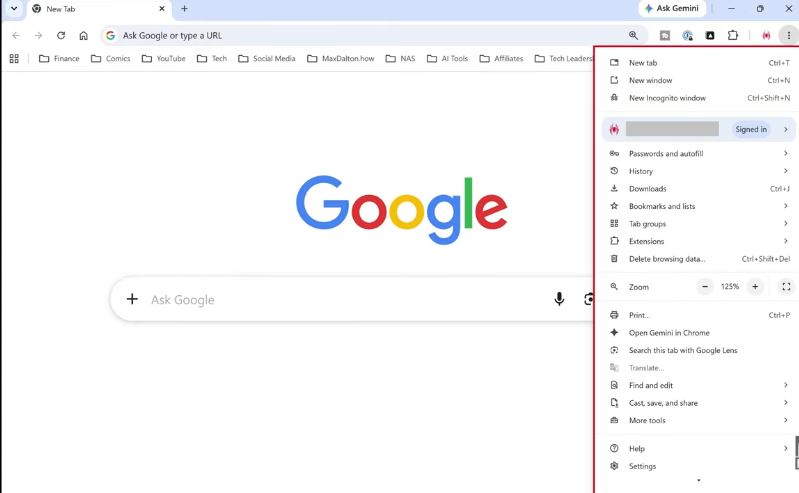
Step 1. Open Chrome and click the three-dot menu in the top-right corner, then select Settings.
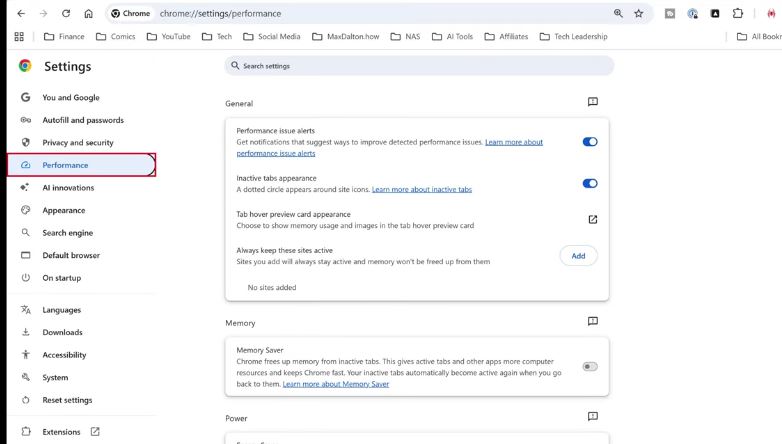
Step 2. On the left sidebar, click Performance. You’ll land on the Memory section immediately — this is also reachable directly by typing chrome://settings/performance into the address bar.
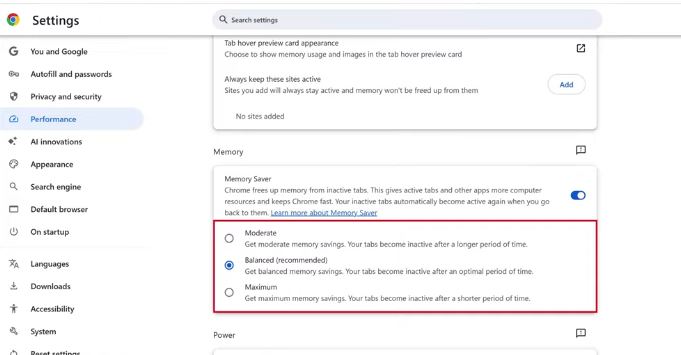
Step 3. Toggle Memory Saver on, then pick a deactivation level. That’s the whole flow — no restart required, and it starts working on your next inactive tab.
Which Memory Saver Mode Should You Pick?
Chrome gives you three intensity levels. They all do the same thing — deactivate inactive tabs — just on different timers:
| Mode | How Soon Tabs Sleep | Best For |
|---|---|---|
| Moderate | Longer wait before deactivation | You switch between tabs constantly and hate reload delays |
| Balanced (recommended) | Optimal, Google-tuned interval | Most people — fewer than 15-20 tabs open |
| Maximum | Shorter wait, most aggressive savings | Tab hoarders, older machines, low-RAM laptops |
One thing that trips people up: a handful of tabs are exempt from deactivation no matter which mode you pick, including tabs playing audio or video, tabs on a call or sharing your screen, tabs with an active download, and tabs with a partially filled-out form. If a site behaves oddly after being reloaded from an inactive state — some single-page apps lose their scroll position or client-side state — add that domain to the “Always keep these sites active” list on the same Performance settings page instead of turning Memory Saver off entirely.
2. Find Exactly What’s Eating Your RAM
Memory Saver treats the symptom. If you want to know the actual cause, Chrome’s own Task Manager is more useful than Windows Task Manager for this, because it breaks memory down per tab and per extension instead of lumping every Chrome process together.
Open it with Shift+Esc on Windows, or from the three-dot menu, go to More Tools → Task Manager. Click the “Memory footprint” column header to sort from highest to lowest — this is usually where the real offender shows up, and it’s not always the tab you’d expect. I’ve had a single pinned social media tab quietly hold onto more RAM than five regular tabs combined. If something is using an unreasonable amount, select it and click End Process to kill it on the spot without closing the whole browser.
3. Remove Extensions You Don’t Actually Use
Extensions run in the background even on tabs that have nothing to do with what they’re built for, since most of them inject a content script into every page you load. A grammar checker, an ad blocker, and a coupon-finder extension are each individually light, but three or four of them stacked together adds up over a full browsing session.
Go to the three-dot menu → Extensions → Manage Extensions, and remove anything you haven’t used in the last month. If you’re not sure which one is the problem, Chrome’s Task Manager (from the step above) lists extensions by name right alongside your tabs, so you can catch a memory-heavy one red-handed before deciding whether to keep it.
4. Stop Hoarding Tabs
This one’s less a “setting” and more a habit fix, but it’s the single biggest lever for a lot of people. Since Chrome runs each tab as a separate process, forty open tabs really does mean forty small programs competing for memory — Memory Saver helps, but it can’t fully offset that if you never close anything.
Chrome’s built-in Reading List (right-click any tab → “Add tab to reading list,” or the bookmark-star icon in the address bar) lets you save a page without keeping the tab open. It’s a small change, but going from 40 open tabs to 10 open tabs plus a reading list makes a real, measurable difference in how the browser feels day to day.
Roughly how much these fixes tend to help (illustrative, based on Google’s own Memory Saver figures)
“Varies” fixes depend heavily on what you had running — one heavy extension or 30 extra tabs can swing the number a lot.
If closing tabs still leaves your downloads or other browser tasks acting up, it’s worth ruling out a separate issue — for instance, if files keep stalling partway through, that’s usually a browser downloads stopping midway problem rather than a memory one.
A quick visual walkthrough of the fixes above, if you’d rather watch than read.
5. Check Hardware Acceleration
Hardware acceleration offloads rendering — video playback, scrolling, animations — to your GPU instead of your CPU, and for most people it genuinely helps performance. But on some systems, especially with an outdated graphics driver, it does the opposite: the GPU process itself balloons in memory and Chrome starts feeling sluggish rather than smooth.
To check it: three-dot menu → Settings → System, then look for “Use graphics acceleration when available.” If Chrome’s memory use spikes specifically when you’re watching video or using a GPU-heavy web app, try toggling this off and relaunching to see if it settles down. If turning it off fixes the issue, the real problem is usually an outdated graphics driver — updating that driver first is often the better long-term fix than leaving acceleration off permanently.
If your machine starts throwing blue-screen driver errors rather than just running slow, that’s a step beyond a browser setting — our guide on the DRIVER_IRQL_NOT_LESS_OR_EQUAL error covers what to do when a graphics or system driver is the actual root cause.
6. Confirm You’re Running 64-Bit Chrome
Most PCs get 64-bit Chrome automatically these days, but it’s still worth a quick check, especially on older machines or ones running Windows 10. Go to the three-dot menu → Help → About Google Chrome. Chrome will show its version number and, if you’re on the 32-bit build, it will say so right there. The 64-bit version handles large amounts of memory more efficiently and supports extra security protections that 32-bit doesn’t. If you’re on 32-bit, download the 64-bit installer directly from Google and reinstall.
When It’s Worth Calling In a Professional
The steps above solve the vast majority of “Chrome is using too much RAM” complaints. But if you’ve done all of it — Memory Saver on, extensions trimmed, tabs under control, hardware acceleration checked — and memory use is still climbing steadily until Chrome crashes or your whole system freezes, that pattern points to something deeper than a browser setting: a genuine memory leak, a failing RAM module, or malware riding along with the browser. At that point, a slow buildup that ends in a crash is worth having a qualified PC technician look at, rather than continuing to tweak settings on your own. Overheating can also mimic memory symptoms by throttling performance, so if your laptop runs hot during normal browsing, it’s worth checking whether cleaning your laptop’s air vents is overdue before assuming it’s purely a software issue.
A Few Extra Things Worth Knowing
Background apps quietly add to the pile too. Chrome has a setting under Settings → System called “Continue running background apps when Google Chrome is closed” — turning that off stops Chrome-related processes lingering after you think you’ve quit the browser. It’s the same logic behind stopping other apps from auto-launching, like disabling Spotify from opening on Windows startup — fewer things starting automatically means less competing for memory the moment you log in.
And if you’re doing a broader device cleanup while you’re at it — say you’re also dealing with a memory card showing up as RAW, or moving photos off an iPhone without wrestling with iTunes — those are separate fixes, but they tend to come up in the same “why does my computer feel slow lately” cleanup session: our guides on fixing a microSD card stuck in RAW format and transferring iPhone photos to a PC without iTunes cover those separately. And if a wireless printer keeps dropping offline during the same general troubleshooting sweep, that’s usually a network issue rather than a memory one — worth checking our wireless printer offline fix if that’s also on your list.
FAQ
Does Memory Saver close my tabs?
No. It unloads the page content from memory but keeps the tab, its title, and its icon in your tab strip. Clicking it reloads the page automatically. Nothing is closed and no browsing history is removed.
How much RAM does Memory Saver actually save?
Google states it can free up to 40% of memory that would otherwise be tied up in background tabs, though the real number depends heavily on how many tabs you keep open and what those tabs are doing.
Why does a specific site break after Memory Saver reloads it?
Some single-page apps store their state only in memory, so when the tab is discarded and reloaded, it restarts from the site’s default view instead of where you left off. Add that site to “Always keep these sites active” in Chrome’s Performance settings to stop it from being deactivated at all.
Is it safe to disable hardware acceleration permanently?
Yes, it’s safe, but you may notice slightly choppier video playback or scrolling on graphics-heavy pages. It’s best used as a diagnostic step — if disabling it clearly fixes a memory or stability issue, the longer-term fix is usually updating your graphics driver rather than leaving it off forever.
Will a RAM-cleaner extension help more than Chrome’s built-in tools?
Generally no. Most of them just automate the same tab-discarding behavior Memory Saver already does, and a few poorly built ones add their own memory overhead on top. Chrome’s native Task Manager and Memory Saver cover the same ground without adding another background process.
Conclusion
Start with Memory Saver — it’s built in, free, and takes under a minute to turn on. If Chrome is still heavy after that, Task Manager will tell you exactly which tab or extension to blame, and trimming extensions plus keeping your tab count reasonable handles almost everything else. Hardware acceleration and the 32-bit-vs-64-bit check are worth a look if you’re still stuck, but for most people, the first two fixes alone are the difference between a browser that crawls and one that stays out of your way. And if RAM usage keeps climbing no matter what you try, that’s a sign to get a technician to look at the hardware rather than keep adjusting settings.