
DNS Server Not Responding? Here’s How I Actually Fixed It on My Home Network
A step-by-step Windows fix for the “DNS server isn’t responding” error — from a 10-second ping test to a full network reset.
By Oyekale Olawale
Quick Answer
If Wi-Fi looks connected but nothing loads, your internet is probably fine — DNS is the broken part. First, run ping 8.8.8.8 to confirm you have a real connection. If that works, flush your DNS cache with ipconfig /flushdns, then switch your adapter to a public DNS server like Google (8.8.8.8) or Cloudflare (1.1.1.1). That fixes it for most people in under five minutes. If it doesn’t, a Winsock/TCP-IP reset or a full Windows Network Reset will almost always finish the job.
I’ve run into this error more times than I’d like to admit — usually right when I’m mid-download or on a call. The pattern is always the same: Wi-Fi icon looks perfectly happy, full bars, “Connected,” and then every single tab throws some version of “DNS server not responding” or Chrome’s DNS_PROBE_FINISHED_BAD_CONFIG. It looks like your internet is dead. It usually isn’t.
DNS is the part of the internet that translates a name like example.com into the IP address your computer actually needs to reach it. When that translation step breaks — because the DNS server is down, misconfigured, blocked by a firewall, or your local cache is corrupted — your Wi-Fi stays “connected” while nothing actually loads. Below is the exact order I work through fixes, starting with the one that takes ten seconds and ending with the one that takes ten minutes.
Why This Happens (Even When Wi-Fi Looks Fine)
A handful of things typically cause this on a home network: your ISP’s DNS server is briefly overloaded or down, Windows’ local DNS resolver cache has a stale or corrupted entry, a router firmware hiccup after a power blip, a VPN or antivirus tool intercepting DNS traffic, or — increasingly common lately — a buggy Windows cumulative update. If you’re curious about the last one specifically, jump to the Windows Update section further down.
If you’re also dealing with a Wi-Fi icon that shows connected but genuinely has no internet access (not just DNS), that’s actually a separate issue with its own fix — I cover it in my guide to Wi-Fi connected but no internet on Windows 11.
Fix 1: Confirm It’s Actually a DNS Problem
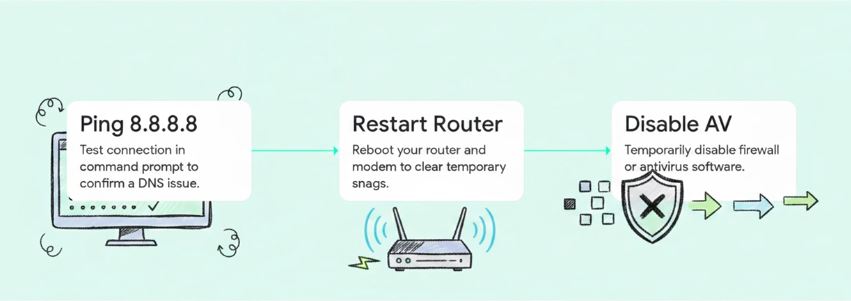
Before touching any settings, I always rule out a dead connection first. Open Command Prompt (you don’t need admin rights for this one) and run:
ping 8.8.8.8
You’re pinging Google’s DNS server directly by its IP address, which sidesteps DNS entirely. If you get replies back, your router, modem, and ISP connection are all working — the fault is specifically in DNS resolution, not your internet. If the ping times out too, the problem is bigger than DNS and you’ll want to restart your router first (Fix 2 covers that) before going any further.

Fix 2: Restart Your Router and Temporarily Check Your Firewall
It sounds too simple to matter, but a router restart clears a surprising number of DNS glitches. Routers cache DNS lookups too, and that cache can get stuck the same way your PC’s can. Unplug it, wait about 30 seconds, and plug it back in.
If that doesn’t clear it, temporarily disable your firewall or antivirus and try loading a site again. Some security suites — particularly ones with a “web protection” or “network shield” module — intercept and filter DNS traffic, and a misfiring rule can block resolution entirely. If sites suddenly load with it off, you’ve found your culprit. Re-enable it right after the test; running without a firewall for more than a few minutes isn’t worth the risk. Go into the security software’s settings afterward and look for a DNS or network-filtering exception instead of leaving protection off.
Fix 3: Flush the Windows DNS Cache
Windows keeps a local cache of previously resolved website addresses so it doesn’t have to ask DNS every single time. When one of those cached entries goes stale or corrupted, it can quietly break sites even though everything else on your network is fine.
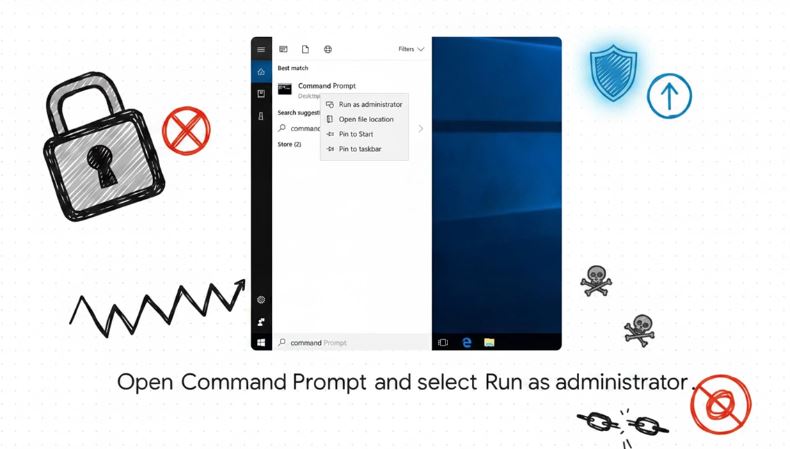
Open Command Prompt and run:
ipconfig /flushdns
On most current versions of Windows 10 and 11 this runs fine in a regular, non-elevated Command Prompt. If you see an “access is denied” message instead — which can happen depending on your account’s UAC policy — right-click Command Prompt and choose Run as administrator, then run the command again. You should see a confirmation that the DNS Resolver Cache was successfully flushed. That forces Windows to fetch a completely fresh set of DNS records the next time you visit a site.
Here’s the full process in a short video walkthrough, including the exact commands and where to find each setting on screen:
Fix 4: Switch to a Public DNS Server
If flushing the cache doesn’t fix it, the DNS server itself — usually your ISP’s — is probably the actual point of failure. Switching to a public DNS provider swaps that server out for one that’s typically faster and more reliable.
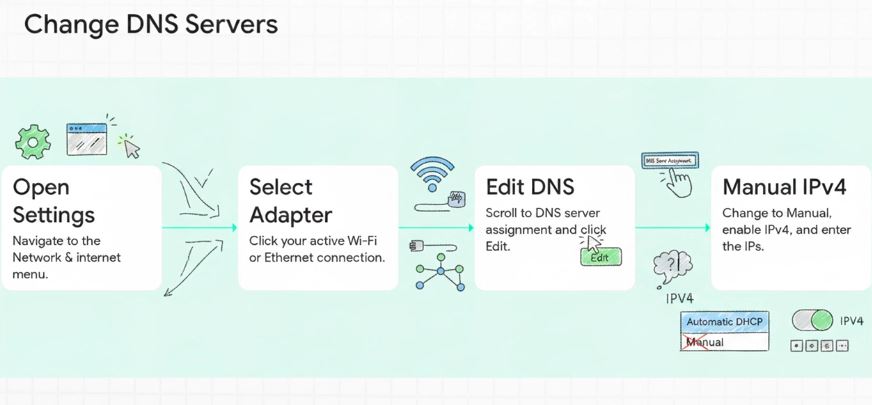
On Windows 10 or 11, go to Settings → Network & Internet → your Wi-Fi or Ethernet connection → DNS server assignment → Edit. Switch it from Automatic (DHCP) to Manual, turn on IPv4, and enter one of the addresses below.
| Provider | Primary (IPv4) | Secondary (IPv4) | Good for |
|---|---|---|---|
| Google DNS | 8.8.8.8 | 8.8.4.4 | Reliability, wide compatibility |
| Cloudflare DNS | 1.1.1.1 | 1.0.0.1 | Speed and privacy focus |
| Quad9 | 9.9.9.9 | 149.112.112.112 | Built-in malicious site blocking |
| OpenDNS | 208.67.222.222 | 208.67.220.220 | Optional content filtering |
If your network also uses IPv6, Google’s IPv6 addresses are 2001:4860:4860::8888 and 2001:4860:4860::8844, and Cloudflare’s are 2606:4700:4700::1111 and 2606:4700:4700::1001. Save your settings and try loading a site again — this step alone resolves the issue for a large share of the “DNS not responding” cases I’ve dealt with.
✅ Why switch DNS providers
Faster average lookup times, fewer ISP-side outages, optional malware/content filtering, and it takes under two minutes to set up.
❌ Worth knowing first
Your ISP will see less of your browsing traffic pattern, but the DNS provider you switch to sees it instead — pick one whose privacy policy you’re comfortable with.
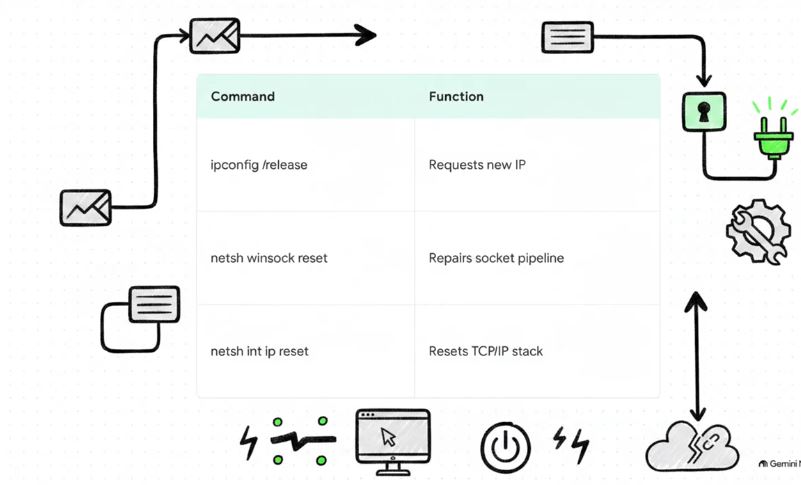
Fix 5: Reset the TCP/IP Stack and Winsock Catalog
If the error persists, the problem may sit deeper in Windows’ own networking stack rather than DNS settings themselves. Corrupted Winsock entries (often left behind by uninstalled VPNs or antivirus software) or a damaged TCP/IP configuration can produce DNS-style symptoms even with correct DNS servers set.
Open Command Prompt as administrator and run these commands one at a time, in this order:
netsh winsock reset
netsh int ip reset
ipconfig /release
ipconfig /renew
ipconfig /flushdns
netsh winsock reset restores the Winsock catalog — the layer that lets apps talk to the network stack — back to its default state. netsh int ip reset rebuilds the TCP/IP configuration, effectively repairing the registry keys that control it. Because these changes touch core networking components, restart your PC afterward so Windows fully applies them before testing again.
Fix 6: Run a Full Windows Network Reset
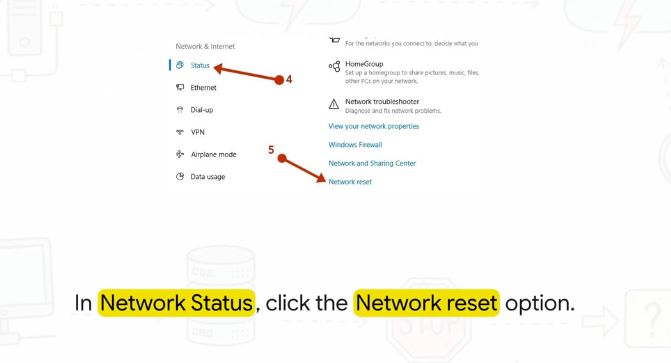
If nothing above has worked, Windows has one more tool: Network Reset. Go to Settings → Network & Internet → Advanced network settings → Network reset. This is significantly more aggressive than a restart — Windows uninstalls and reinstalls your network adapters and returns every network component to its factory default configuration.
Two things to know before you click it: it removes your saved Wi-Fi networks and passwords, so have your Wi-Fi password ready to reconnect afterward, and it can reset your network profile back to Public, which changes how discoverable your PC is to other devices on the network. Your computer will restart automatically as part of the process.
Bonus Check: Rule Out a Bad Windows Update
This one’s easy to miss but worth checking if the error appeared suddenly, out of nowhere, on a PC that was working fine the day before. Windows 11 has shipped a handful of networking-related cumulative updates over the past year that introduced DNS regressions for some users before later being revised. If the timing lines up, go to Settings → Windows Update → Update history → Uninstall updates, sort by install date, and remove whichever update landed right before the problem started. Restart, then test again. If you’d rather check from the command line first, Get-HotFix | Sort-Object InstalledOn -Descending | Select-Object -First 10 in PowerShell lists your ten most recent patches with their KB numbers, which you can cross-reference against Microsoft’s known-issues page.
How I Test These Fixes Before Recommending Them
I don’t write these guides from documentation alone. I reproduce the error on an actual Windows 10 and Windows 11 machine — usually by manually pointing the adapter at an unreachable DNS address — and then work through each fix in order to confirm it actually resolves things, not just in theory. A few things I’ve run into while testing this specific error: the Windows 11 “DNS server assignment” panel sometimes silently keeps the old automatic DNS entry cached in the network adapter’s properties even after you switch to manual, so if a public DNS change doesn’t seem to take effect, double-check under Change adapter options → Properties → IPv4 that the new addresses actually saved. I’ve also seen ipconfig /flushdns report success while a browser (Chrome and Edge especially) keeps serving from its own separate DNS cache — if a site still won’t load right after flushing, restart the browser or visit chrome://net-internals/#dns and clear it there too.
One more honest note: this reflects my own hands-on testing and troubleshooting experience, not official Microsoft support guidance or professional IT advice. Your results can vary depending on your router model, ISP, and Windows build.
When to Bring in a Professional
These six fixes solve the vast majority of home-network DNS errors. But if you’ve worked through all of them and you’re still stuck — especially if the issue only affects one device on a network with several others working fine, if it started after a router firmware update or ISP change you can’t reverse, or if you suspect malware is redirecting your DNS traffic — that’s a good point to stop self-troubleshooting. Contact your ISP’s support line to rule out an outage or account-level block on their end, or bring the device to a qualified IT technician if you suspect a deeper hardware or malware issue. Poking around in registry-level networking settings without knowing exactly what broke can sometimes create a second problem on top of the first one.
FAQ
What does “DNS server not responding” actually mean?
It means your computer can’t reach the server that translates website names into IP addresses. Your Wi-Fi or Ethernet connection can be fully working while this specific translation step fails, which is why the connection icon still looks normal.
How do I know if it’s my DNS or my whole internet connection that’s down?
Run ping 8.8.8.8 in Command Prompt. If you get replies, your connection is fine and the fault is DNS-specific. If the ping fails too, restart your router and check your broader connection before troubleshooting DNS.
Should I use Google DNS or Cloudflare DNS?
Both are free, fast, and reliable, so either fixes the “not responding” issue equally well. Cloudflare (1.1.1.1) is generally marketed on speed and a stricter privacy policy; Google (8.8.8.8) has slightly wider global infrastructure. For home troubleshooting purposes, the difference is negligible — pick whichever provider’s privacy terms you’re more comfortable with.
Will switching my DNS server slow down my browsing?
No — in most cases it’s the opposite. Public DNS providers like Google and Cloudflare typically resolve lookups faster than an overloaded or poorly maintained ISP DNS server, since resolving speed comes down to server load and network routing, not which provider you pick.
Does this error happen on phones and Macs too, or only Windows?
DNS problems affect any device, but the exact wording of the error and the fix steps are Windows-specific. On iOS, Android, and macOS you’ll typically see a different error message, though the underlying fix — flushing the cache or switching to a public DNS — is the same idea.
Do I need to contact my ISP for this?
Usually not — most home cases resolve with the steps above since the fault sits on your PC or router, not the ISP’s network. Contact your ISP only if the error affects every device on your network simultaneously and switching DNS servers doesn’t help, since that pattern can point to an outage or filtering on their end.
Conclusion
“DNS server not responding” looks alarming, but it’s almost always one of the six fixes above — and for most people, it never gets past flushing the DNS cache and switching to a public DNS server. Work through them in order, from the ping test up to the network reset, and restart after any step that touches Windows’ core networking components. If you’re still stuck after all six, that’s your signal to loop in your ISP or a technician rather than keep digging into registry settings on your own.
If DNS wasn’t your only network headache today, a few related guides that might help: fixing slow upload speed on fiber internet, getting a wireless printer back online, and stopping Chrome from eating all your RAM — a common companion problem once you’re back online. If a blue screen shows up during any of the reset steps, my DRIVER_IRQL_NOT_LESS_OR_EQUAL fix covers that separately, and if your downloads keep stalling once sites load again, check my post on browser downloads that stop midway.