
Laptop Fan Loud and Overheating? 11 Fixes I’ve Actually Used to Quiet It Down
From a dusty vent to a dying thermal sensor — here’s how I work out what’s actually making a laptop scream, and what I try first, second, and last.
Quick Answer
A loud laptop fan almost always means the cooling system is compensating for heat it can’t move fast enough — usually dust-clogged vents, a missing graphics driver, or a background app hogging the CPU. Start by checking Task Manager and cleaning the vents with compressed air; if the fan is still screaming afterward, check your temperatures with a free tool like Core Temp before you assume it’s a hardware failure.
Grab the Free 20-Minute Windows 11 Troubleshooting Checklist
The same checklist I run through before touching any overheating or slow-running Windows laptop — drivers, startup apps, disk health, and thermal checks in one PDF.
Send Me the ChecklistA loud fan doesn’t automatically mean something’s broken. Most of the time it’s your laptop telling you it’s working harder than it should — and once you know where to look, you can usually tell within ten minutes whether you’re dealing with dust, a driver, a runaway app, or something that actually needs a technician.
I’ve worked through this exact complaint on more machines than I can count — some fixed with a can of compressed air, one that turned out to be a thermal sensor lying to Windows about the CPU being on fire. Below is the order I’d actually work through it myself, cheapest and simplest first.
What “Normal” Fan Noise vs. a Real Problem Looks Like
Before you start pulling out screwdrivers, it helps to know what you’re actually chasing. A fan spinning up during a video call or a big software update is normal. A fan that sounds like a hair dryer while you’re typing in a Word document, or one that rattles and grinds instead of whooshing, is not.
| CPU State | Healthy Range | Worth Investigating |
|---|---|---|
| Idle (browsing, docs) | 30–45°C | Consistently above 60°C |
| Moderate load (streaming, tabs) | 45–65°C | Consistently above 80°C |
| Heavy load (gaming, rendering) | 65–85°C | Sustained 90°C+ with throttling |
| GPU under load | 65–85°C | Above 90°C on a laptop chassis |
These ranges vary slightly by CPU/GPU model, but they’re a reliable general guide for 2026-era laptop hardware. Your manufacturer’s spec sheet has the exact TjMax for your specific chip if you want to be precise.
1. Update Windows and Your Graphics Drivers
If the fan got loud right after a fresh Windows install or a reset, this is where I always start. A missing or generic graphics driver is one of the most common causes of a laptop fan running flat out for no visible reason — the GPU can’t step down into its low-power states properly, so it just sits there generating heat.
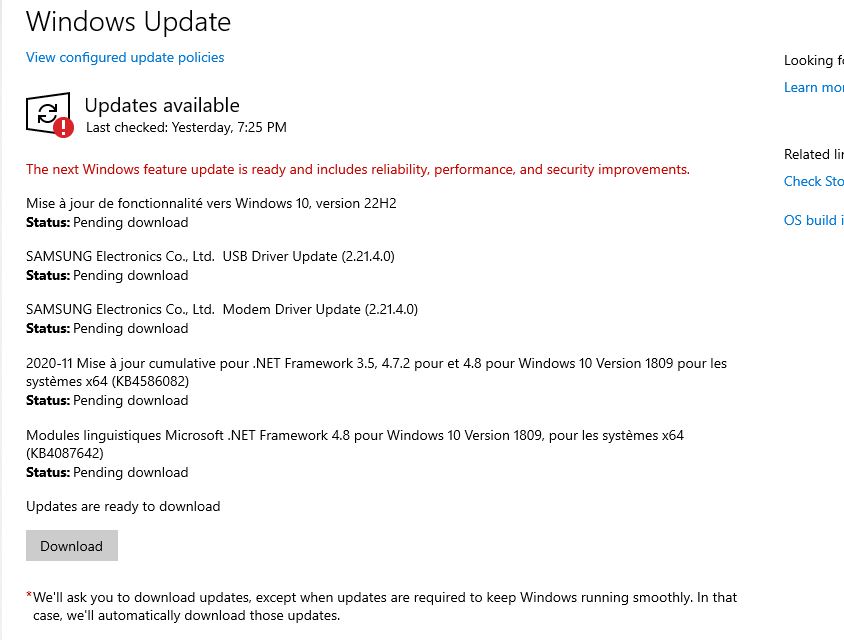
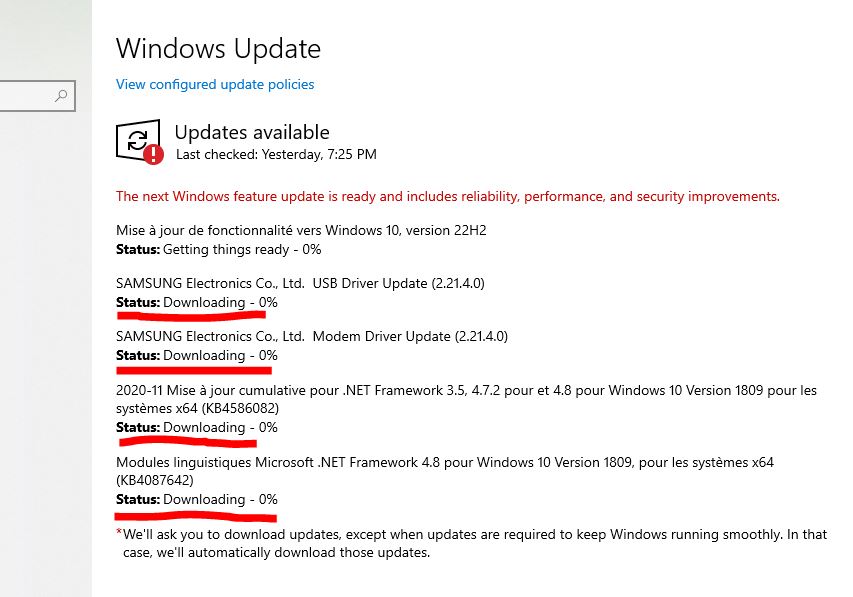
Go to Settings → Windows Update and install everything available, including any offered BIOS or firmware update.
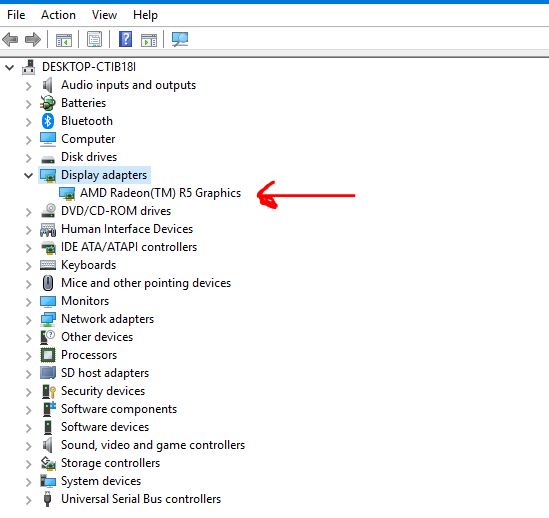
Next, open Device Manager → Display adapters and check what’s actually installed. If you see “Microsoft Basic Display Adapter” or a yellow warning triangle instead of your real NVIDIA, AMD, or Intel GPU, Windows is running the graphics card without proper power management — which is exactly the kind of thing that makes a fan run louder than it needs to.
Download the correct driver straight from your laptop manufacturer’s support page rather than a generic chipmaker download — OEM drivers usually include the specific power and thermal profiles for your exact model. This is the same first step I use for other driver-related headaches, like the DRIVER_IRQL_NOT_LESS_OR_EQUAL blue screen, which is often caused by the same kind of outdated or mismatched driver.
2. Check Your CPU and GPU Temperatures
If drivers were current and the fan is still loud, the next step is to stop guessing and actually look at the numbers. I use Core Temp or HWMonitor — both are free and give you real-time CPU and GPU readings without any setup hassle.
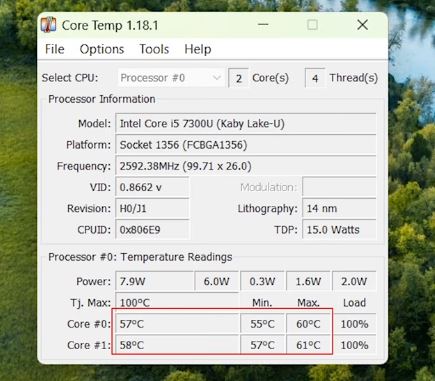
Use the table above as your reference. If the CPU package is consistently sitting above roughly 80°C while you’re just browsing or writing an email, that’s a real sign the cooling system needs attention — not a normal reading. Higher numbers during gaming, video editing, or rendering are expected, so factor in what you were actually doing when you took the reading.
3. Clean the Laptop’s Vents and Fans
Dust is the single most common cause I run into, and it’s the cheapest to fix. A dust-lined heatsink can’t shed heat efficiently, so the fan spins faster and longer trying to compensate. Shut the laptop down, unplug it, and use compressed air on the external vents first.
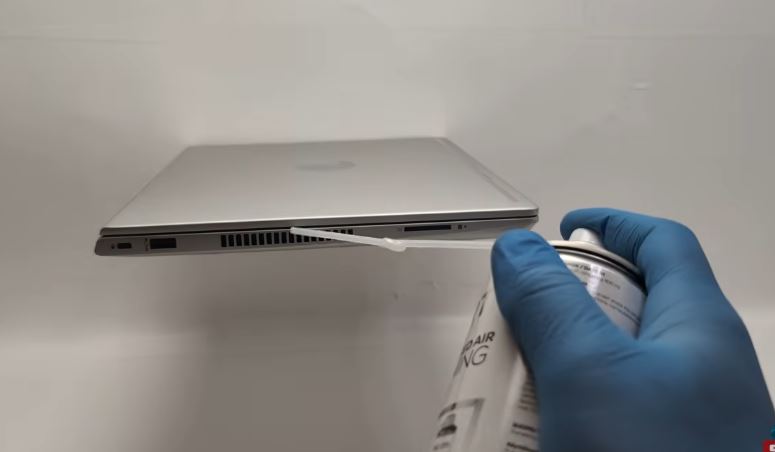
If you’re comfortable opening the bottom panel, clean the internal fan blades and heatsink fins with compressed air and a soft brush too — most of the buildup actually collects there, not at the vent opening.
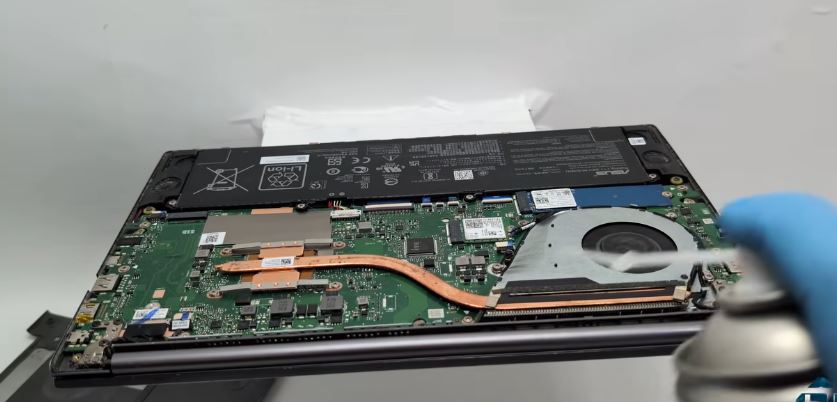
Check your temperatures again after cleaning. This one step alone resolves a surprising number of the “loud fan” cases I see. If you want a more detailed walkthrough with specific tools and technique, I wrote a full guide on how to safely clean dust out of your laptop’s air vents.
4. Replace the Thermal Paste
If the laptop is still running hot after a proper cleaning, old thermal paste is the next suspect. Thermal paste sits between the CPU/GPU die and the heatsink to transfer heat efficiently — and it dries out and loses effectiveness over two to four years of regular use, sometimes faster in hot climates or with heavy daily use.
Replacing it means opening the laptop and removing the cooling assembly entirely, which on some ultrabook designs involves disconnecting delicate ribbon cables. If you haven’t done this before, I’d genuinely recommend having a technician handle it — a poorly reseated heatsink or a torn cable connector turns a $10 fix into a much more expensive one.
5. Check for Programs Using Too Many Resources
Sometimes the cooling system isn’t the problem at all — the laptop is just working too hard because of software. Open Task Manager and check the Processes tab, sorting by CPU, then by Disk, to see what’s actually chewing through resources.
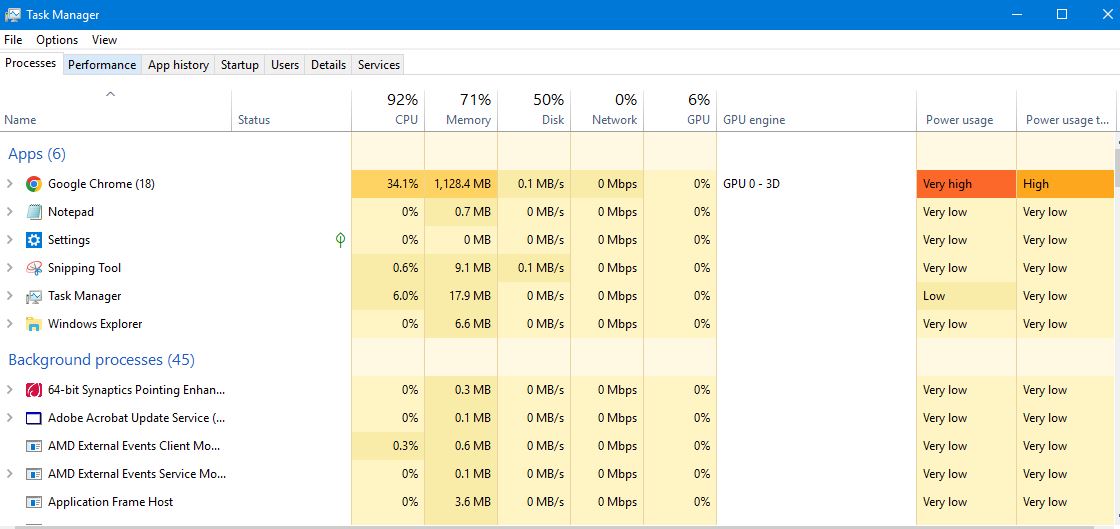
Browsers with dozens of open tabs are a frequent culprit — I’ve written before about how Chrome quietly eats through RAM in the background, and the same processes that spike memory usually spike CPU and fan noise too. Cloud-sync apps, pending Windows updates, and bundled manufacturer software are the other regulars. Close what you don’t need, and look up anything unfamiliar before you end or uninstall it.
6. Disable Unnecessary Startup Programs
Some applications launch automatically with Windows and keep running quietly in the background, adding to the baseline load your CPU carries all day. Open Task Manager → Startup apps and disable anything you don’t actually need running from boot.
Only disable what you’re sure about — some background processes are tied to drivers or security software you want running. If you’ve ever wondered why an app like Spotify keeps relaunching itself every time you sign in, I covered that exact fix in my guide on stopping Spotify from opening on Windows startup — the same setting pattern applies to most other apps that misbehave this way.
Watch the full process
Video credit: EasyTechs on YouTube.
7. Check the BIOS or UEFI Fan Settings
Some laptops expose fan or thermal controls directly in the BIOS/UEFI. Restart the laptop and press the key your manufacturer uses to enter setup — usually F2, F10, Delete, or Escape, shown briefly on the boot screen.
Look for options labeled Fan Control, Thermal Management, Silent Mode, Balanced Mode, or Performance Mode. Not every laptop offers this — budget and ultraportable models especially tend to lock fan behavior entirely — so treat this as a “check if available” step rather than something every machine supports.
8. Use the Manufacturer’s Fan-Control Software
If your BIOS doesn’t give you useful fan controls, check whether your manufacturer ships its own utility. Dell Power Manager, ASUS Armoury Crate, and Lenovo Vantage all include thermal or performance profiles on supported models.
Switching from a Performance profile to Balanced or Quiet can noticeably cut fan noise during everyday use, at the cost of slightly lower sustained performance during heavy tasks. It’s worth testing which trade-off actually matters for how you use the laptop day to day.
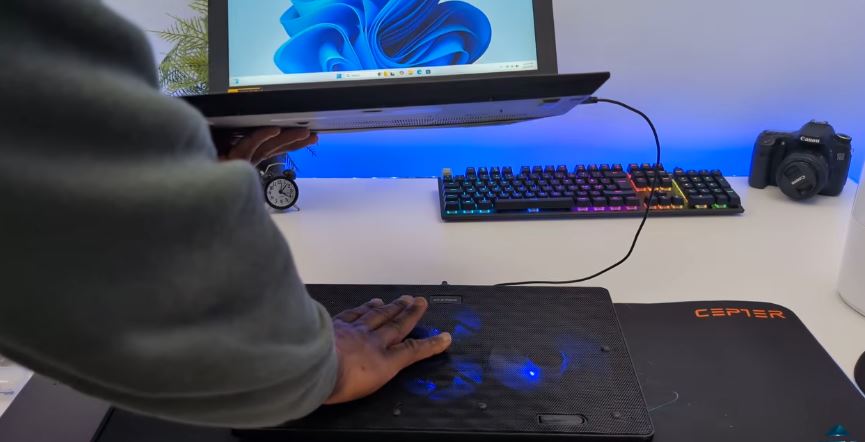
9. Consider a Cooling Pad
If your laptop only gets loud during gaming, video editing, rendering, or other genuinely demanding work, a cooling pad can help the internal cooling system keep up. It won’t fix a hardware problem, dust buildup, or a bad driver — but it does add real airflow underneath the chassis where laptops often struggle most.
Pros
Cheap, portable, reduces bottom-chassis temperatures during heavy loads, no disassembly required.
Cons
Doesn’t fix dust, dried paste, or driver issues; adds desk footprint; needs USB power on most models.
10. Check for a Faulty Thermal Sensor
This one’s worth investigating if the fan runs at full speed the moment you turn the laptop on, even though it hasn’t done anything demanding yet. It’s especially suspicious when CPU usage is low, the chassis doesn’t feel warm, and your monitoring software shows one sensor pinned at an oddly fixed or clearly wrong temperature.
In that scenario, the sensor is essentially lying to the system, telling it the laptop is overheating when it isn’t — and the fan controller responds accordingly. Diagnosing this with confidence takes a monitoring tool like HWMonitor or HWiNFO alongside knowledge of what your specific sensors should read. Replacing a thermal sensor is an advanced repair that usually means disassembling the laptop to reach the motherboard, so unless you’re experienced with laptop teardown work, this is one I’d leave to a technician.
11. Replace the Fan If It’s Rattling or Grinding
There’s a real difference between a fan spinning loudly and a fan making a mechanical rattling, grinding, or scraping noise. Loud-but-smooth usually points to one of the software or airflow causes above. Rattling or grinding usually means the fan blade is wobbling, chipped, or physically scraping its housing — a wear issue, not a heat issue.
If that’s what you’re hearing, replacing the fan is typically the right call. Make sure any replacement part matches your exact laptop model number, since fan assemblies aren’t interchangeable across even closely related models. This is another job I’d hand to a technician unless you’ve opened this specific chassis before — the ribbon cable connectors around laptop fans are small and easy to damage.
What I’d Try First
I wouldn’t open the laptop just because the fan is loud. I’d start with Windows Update and the graphics driver, then check CPU and GPU temperatures to see what I’m actually dealing with.
If temperatures are high, I’d clean the vents and fans next, and only look at thermal paste if that doesn’t bring things down. If temperatures are normal, I’d go straight to Task Manager and my startup programs list. For a laptop that’s loud immediately at startup despite being cool and idle, I’d suspect a thermal sensor. And if what I’m hearing is rattling or grinding rather than a whoosh, I’d assume the fan itself needs replacing.
Working through it in that order should tell you fairly quickly whether you’re dealing with a software issue, dust and airflow, a faulty sensor, or a fan that’s actually worn out. If you’re also dealing with a laptop that’s running slow on top of being loud, it’s worth ruling out a struggling drive too — I’ve got a separate guide on optimizing a slow SSD on Windows 11 that covers the disk side of the same “why is my laptop working so hard” question.
Frequently Asked Questions
Is it bad to keep using a laptop with a loud fan?
Not immediately, as long as temperatures stay within safe ranges — the fan running loud is often the cooling system working correctly, not failing. It becomes a concern if temperatures are also climbing into the 90s consistently, or if you hear grinding rather than airflow noise.
How often should I clean my laptop’s vents?
Roughly every six months for typical use, and every three months if you use the laptop on carpet, in bed, or in a dusty environment. Pet owners usually need to clean more often too.
Can a laptop fan being loud damage the battery?
Sustained high heat does degrade battery health faster over time, since heat is one of the main factors that ages lithium-ion cells. A loud fan actively cooling the system is generally protecting the battery, not harming it — it’s the heat itself, not the noise, that matters.
Will reapplying thermal paste myself void my warranty?
On many laptops, yes — opening the chassis can void the manufacturer’s warranty, especially on ultrabooks with sealed or glued components. Check your warranty terms first, and if the laptop is still covered, contact the manufacturer or an authorized service center instead.
Conclusion
Most loud laptop fans come down to something simple: a missing driver, a dusty vent, or an app quietly hogging the CPU. Work through the fixes in order, check your temperatures along the way, and you’ll usually land on the answer well before you need to reach for a screwdriver. When a fix involves opening the chassis, touching the thermal sensor, or replacing a physical part, it’s always worth weighing your own comfort with the repair against the cost of having a professional handle it — a wrong move inside a laptop is often a more expensive mistake than the original problem.
This post may contain affiliate links to tools and products mentioned above; if you buy through them, I may earn a small commission at no extra cost to you. The embedded video walkthrough is credited to the EasyTechs YouTube channel and used here for reference purposes.