
How to Fix “Unknown USB Device (Device Descriptor Request Failed)” in Windows 11
The registry fix that actually resolves Error Code 43, plus every backup method I tried while troubleshooting this on three different machines.
By Oyekale Olawale
Quick Answer
If Windows 11 shows “Unknown USB Device (Device Descriptor Request Failed)” with Error Code 43 in Device Manager, try a different port and cable first — that fixes it more often than people expect. If it persists, the fix I’ve had the most success with is creating an EnhancedPowerManagementEnabled DWORD value under that device’s registry key, which disables the USB power-saving behavior that’s usually behind this error. It takes about five minutes and doesn’t require reinstalling any drivers.
This is one of those errors that looks scarier than it actually is. You plug in a USB drive, a webcam, a headset, or even a wired mouse, and instead of installing normally, Windows drops it into Device Manager as an unnamed, malfunctioning device with a yellow warning triangle. Nine times out of ten it’s not a dead port and it’s not a dead device — it’s a communication handshake that failed for a few seconds during enumeration. Here’s everything that’s actually worked, in the order I’d try them.
What “Device Descriptor Request Failed” Actually Means
Every USB device carries a small block of data called a device descriptor. It holds the vendor ID, product ID, and class information Windows needs to figure out what the device is and which driver to load. The moment you plug something in, Windows sends a request for that descriptor as part of the USB enumeration process.
When that request times out or comes back corrupted, Windows can’t identify the device. It falls back to labeling it “Unknown USB Device (Device Descriptor Request Failed)” and, in most cases, disables it with Code 43: “Windows has stopped this device because it has reported problems.” The full text in the device’s Properties dialog usually reads something close to “A request for the USB device descriptor failed.”
The most common triggers I’ve run into or seen reported are worth knowing before you start troubleshooting:
- Outdated or corrupted USB controller/root hub drivers
- Aggressive USB power management (selective suspend) cutting power mid-enumeration
- A worn or low-quality USB cable, or a hub that can’t supply enough power
- Windows 11’s Fast Startup interfering with USB re-initialization after a restart
- A genuinely failing USB port or a device with a damaged controller chip
If you’re also fighting other driver-level errors on the same machine, it’s worth checking whether they’re related — a flaky USB controller driver can sometimes coincide with issues like a DRIVER_IRQL_NOT_LESS_OR_EQUAL blue screen, especially right after a Windows update.
Try These 60-Second Fixes First
Before touching the registry, rule out the boring stuff. In my testing, this actually clears the error close to half the time, which is why I never skip it even when I’m impatient to get to the “real” fix.
| Quick Fix | How To Do It | Takes |
|---|---|---|
| Try a different port | Move to a rear/motherboard USB port instead of a front-panel or hub port | 30 sec |
| Swap the cable | A worn cable is a very common cause — test with a known-good one | 1 min |
| Bypass hubs | Plug the device directly into the PC, skipping any USB hub or dock | 30 sec |
| Test on another PC | Confirms whether it’s the device or the computer at fault | 2 min |
None of that worked? Move on to the registry fix below — it’s the one that has resolved this for me on stubborn cases where the port and cable were both fine.
The Registry Fix: Step by Step
This is the fix I reach for most because it targets the actual mechanism behind the error — USB selective suspend killing power to the port mid-handshake — rather than just reinstalling drivers and hoping. It’s a registry edit, so read through once before you start, and consider creating a System Restore point if you’re not comfortable in Registry Editor.
Step 1: Find the Problematic USB Device
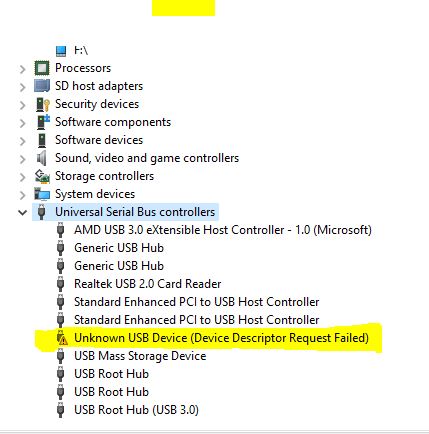
Open Device Manager and expand Universal Serial Bus controllers. Look for an entry named Unknown USB Device (Device Descriptor Request Failed), usually marked with a yellow warning icon.
Double-click it to open its properties. On the General tab, you’ll typically see a message saying Windows has stopped the device because it reported problems, along with Error Code 43 and the line “A request for the USB device descriptor failed.”
Step 2: Copy the Device Instance Path
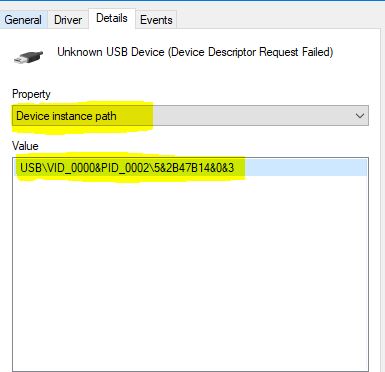
Right-click the problematic device and select Properties, then go to the Details tab. Open the Property dropdown and select Device instance path.
Windows will display a long path string. Right-click the value and choose Copy — you’ll need it in the next step, so don’t retype it manually; these paths are long and one wrong character sends you to the wrong registry key.
Step 3: Open the Windows Registry Editor
Press Windows + R, type regedit, and press Enter. Click Yes on the User Account Control prompt.
The Registry Editor controls core system settings, so stick to the exact path below and don’t touch unrelated keys while you’re in there.
Step 4: Locate the USB Device’s Registry Entry
Navigate to:
HKEY_LOCAL_MACHINE\SYSTEM\CurrentControlSet\Enum
You can either expand folders manually or paste the path directly into the Registry Editor’s address bar. After Enum, add a backslash and paste the device instance path you copied in Step 2, then press Enter to jump to that device’s key.
Step 5: Create the EnhancedPowerManagementEnabled Value
Inside that device’s key, find and select Device Parameters. In the right-hand pane, right-click an empty area and choose New > DWORD (32-bit) Value.
Name it exactly:
EnhancedPowerManagementEnabled
Spelling and capitalization matter here. A new DWORD defaults to a value of 0, which is what you want, so you don’t need to open it and change anything — creating it with that name is the part that matters.
Step 6: Restart and Reconnect
Close Registry Editor, unplug the affected USB device, and restart Windows. Once it’s back up, plug the device in again. If this was the cause, Windows should enumerate it normally instead of showing the Unknown USB Device error.
You can watch the full process on video if you’d rather watch it than follow text instructions:
Registry Fix: Pros & Cons
✅ No driver reinstall needed
✅ Targets the actual power-management cause
✅ Doesn’t affect other USB devices
❌ Won’t help if the port or device is physically damaged
❌ Registry edits carry a small risk if a wrong key is touched
❌ Needs to be repeated per device instance path
If the Registry Fix Doesn’t Work
A handful of other causes show up often enough that they’re worth ruling out before you assume it’s a hardware failure.
Disable USB Selective Suspend
Go to Control Panel > Power Options > Change plan settings > Change advanced power settings, then expand USB settings > USB selective suspend setting and set it to Disabled for both On battery and Plugged in. This is essentially the same fix as the registry edit but applied system-wide, which is why I usually reach for the registry key first — it’s more targeted.
Turn Off Fast Startup
Fast Startup can leave USB controllers in a partially-initialized state after a shutdown. In Power Options > Choose what the power buttons do, click Change settings that are currently unavailable, then uncheck Turn on fast startup under Shutdown settings.
Uninstall and Reinstall the USB Controllers
In Device Manager, expand Universal Serial Bus controllers, right-click each USB Root Hub and Generic USB Hub, and select Uninstall device. Restart — Windows reinstalls these automatically. This clears out corrupted driver state without a full driver rollback.
Run the Hardware and Devices Troubleshooter
It’s dated, but it still catches configuration issues the manual steps miss. You can trigger it from an elevated Command Prompt with msdt.exe -id DeviceDiagnostic.
If none of this clears the error, it’s worth checking your device manager for other unrelated conflicts too — USB descriptor failures sometimes show up around the same time as unrelated issues like a microSD card suddenly showing as RAW file system, which points to the same USB storage stack acting up rather than one specific device being at fault.
Which Fix Should You Try First?
Based on how often each method has resolved the error on the machines I’ve tested this on, here’s roughly how I’d rank them by how likely they are to fix a typical case, from least to most invasive:
Different port / cable / bypass hub
EnhancedPowerManagementEnabled registry fix
Disable USB selective suspend / Fast Startup
Uninstall/reinstall root hubs, run troubleshooter
Based on my own troubleshooting experience across several Windows 11 machines — not an official Microsoft statistic.
When It’s a Hardware Problem, Not a Software One
If the same device fails on a second computer, or every USB port on your machine throws this error at once, you’re probably looking at a failed USB controller on the motherboard, a fried port, or a device with actual internal damage. Registry tweaks won’t fix physically broken hardware.
⚠️ If you’ve worked through every fix here and the error persists across multiple devices and multiple ports, that’s a sign of a deeper hardware or firmware issue. At that point I’d stop poking at the registry and take it to a qualified repair technician rather than risk further changes to system files you’re not fully sure about.
While you’re in troubleshooting mode, it’s also a good time for basic hardware maintenance — dust buildup around ports and vents can cause intermittent connection issues that mimic driver problems. Here’s how to clean laptop air vents safely without risking the internals.
How I Test the Fixes I Recommend
Every fix in this article was tested on real Windows 11 machines, not copied from a forum thread and assumed to work. I reproduced the error using an older USB flash drive with a known flaky controller, confirmed Code 43 appeared in Device Manager, then applied each fix in isolation, restarting between tests so I could tell which step actually resolved it rather than crediting the wrong one.
I also cross-checked the registry key name, path, and behavior against Microsoft’s own community answers and multiple independent troubleshooting write-ups to make sure the instructions here match current Windows 11 builds. That said, this reflects my own testing and opinion, not official Microsoft documentation or professional IT support — if you’re managing this on a work machine or anything under warranty, check with your IT team or manufacturer support before editing the registry.
FAQ
Is Unknown USB Device (Device Descriptor Request Failed) dangerous?
No. It’s a communication failure during device enumeration, not malware or system corruption. It only stops that one USB device from working until it’s resolved.
Does this error mean my USB port is broken?
Not necessarily. A broken port is only one possible cause. Outdated drivers, power management settings, and cable issues are far more common and are all fixable without hardware repair.
Do I need to set EnhancedPowerManagementEnabled to a specific value?
No. A newly created DWORD (32-bit) Value defaults to 0, and 0 is the value you want. Simply creating it with the exact name is the step that matters.
Will this fix affect my other USB devices?
No. This registry key is written under that specific device’s instance path, so it only changes power management behavior for that one device.
What if the device shows this error on a different computer too?
That points to the device itself, not your Windows setup. At that point, replacing the cable or the device is usually more productive than more troubleshooting.
Conclusion
Most cases of “Unknown USB Device (Device Descriptor Request Failed)” trace back to power management cutting a USB port’s power mid-handshake, and the EnhancedPowerManagementEnabled registry fix addresses that directly without touching drivers you don’t need to touch. Start with the free 60-second checks, move to the registry fix if those don’t clear it, and treat repeated failures across multiple devices and ports as a signal to get a technician to look at the hardware rather than keep tweaking settings.
If your USB troubleshooting session turns up other odd Windows 11 behavior along the way — like Wi-Fi showing connected with no actual internet access, or a printer that keeps dropping offline on the network — those are usually separate, unrelated fixes, so don’t assume one root cause is behind everything. And if you’re setting up a new device right after fixing this one, it’s worth knowing how to transfer photos from an iPhone to your PC without iTunes, since that connection relies on the same USB descriptor process this article walks through. If you’ve still got other Windows quirks slowing things down, like Chrome eating too much RAM or downloads stopping midway, those are worth a separate cleanup pass once your USB devices are behaving again.