
Second Monitor Not Detected in Windows 11? Here’s How I Fixed It
A working checklist that starts with cables and ends with drivers — the same order I use every time this happens on my own desk.
Tested & written by Oyekale Olawale
Quick Answer
Nine times out of ten, a second monitor that Windows 11 won’t detect comes down to a loose cable, the wrong input source, or a graphics driver that needs updating. Reconnect the power and video cables firmly, confirm the monitor is on the correct HDMI/DisplayPort input, then go to Settings > System > Display > Multiple displays > Detect. If that still doesn’t work, update or roll back your graphics driver in Device Manager — that clears up the stubborn cases.
I’ve had this exact problem more times than I’d like to admit, usually right when I’m trying to set up a second screen for editing photos I just pulled off my phone (if that’s you too, here’s how to transfer photos from an iPhone to a PC without iTunes first). Windows 11 plugs a monitor in, does nothing, and leaves you staring at one screen instead of two. The good news is that the fix is almost always boring — cables, settings, drivers, in that order. Below is the exact process I run through, plus a few extra steps that aren’t in most guides but have saved me on stubborn setups.
Why Windows 11 Stops Detecting a Second Monitor
Before jumping into fixes, it helps to know what’s usually behind this. In order of how often I actually see it:
- A power or video cable that’s loose, damaged, or plugged into the wrong port
- The monitor set to the wrong input source (HDMI 1 vs HDMI 2, for example)
- Windows set to “PC screen only” instead of “Extend” or “Duplicate”
- An outdated, corrupted, or recently-updated graphics driver
- A docking station or USB-C hub that’s dropping the video signal
- An older monitor with limited compatibility with the current Windows 11 build
Step 1: Check the Physical Connections
I always start here, even when I’m fairly sure the cable is fine — it takes ten seconds and rules out the most common cause. The monitor needs two things: a power cable connected to a live outlet, and a display cable (HDMI, DisplayPort, or occasionally USB-C) connected to the PC or laptop.
Unplug both cables completely, check the ends for bent pins or visible damage, and reconnect them firmly until they click or seat all the way in. A cable that looks connected but isn’t fully seated is one of the sneakiest causes of this whole problem, and it’s easy to miss when you’re just glancing at the back of a monitor.
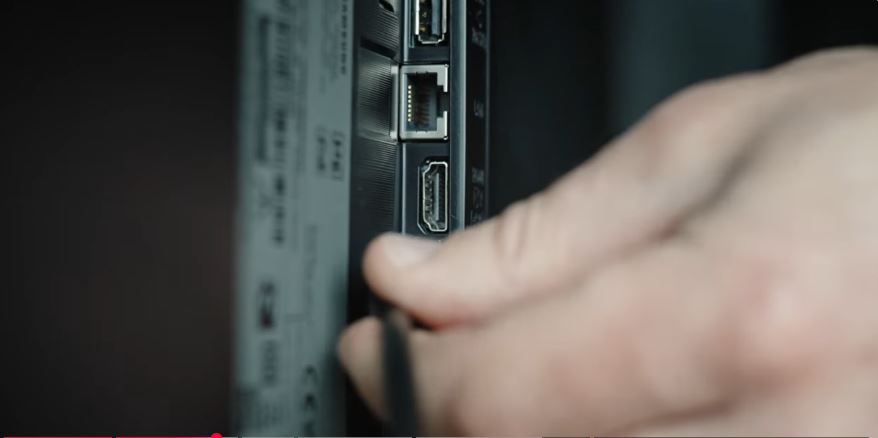
Reseating both the power and video cables clears up more cases than any Windows setting does.
If you’re using a docking station or a USB-C hub between your laptop and the monitor, try bypassing it — plug the monitor directly into your laptop’s HDMI or DisplayPort output instead. Docking stations add another layer that can fail on its own, and I’ve seen the same cheap hubs cause other odd behavior too, like Bluetooth audio stuttering on the same machine. If the monitor works when plugged in directly, the dock or hub is your actual problem.
Step 2: Confirm the Monitor Is Actually On
It sounds too basic to matter, but I’ve genuinely lost time to this. Press the physical power button on the monitor and look for the LED indicator to light up. Some monitors drop into a deep standby state where the button doesn’t respond on the first press — hold it for a second or two rather than tapping it.
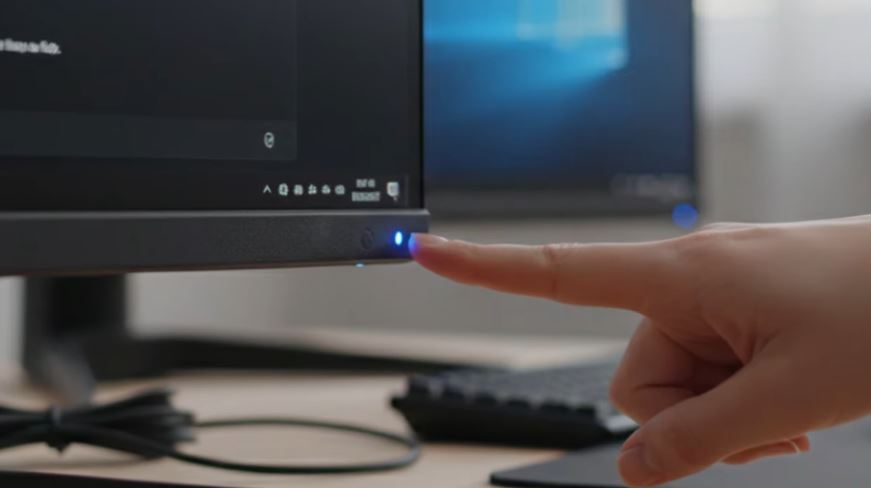
No LED at all after several presses usually points to the power cable or outlet, not Windows.
If there’s no LED at all after several attempts, test the power outlet with another device, and try a different power cable if you have one on hand — internal power supplies do fail, and that’s a hardware problem no Windows setting will fix.
Step 3: Check the Monitor’s Input Source
A monitor that’s powered on but showing nothing is very often just looking at the wrong input. If you plugged your cable into the port labeled HDMI 2, the monitor’s on-screen menu needs to be set to HDMI 2 as well — not HDMI 1 or DisplayPort. Use the physical buttons on the monitor to open its menu and cycle through the available inputs until the image appears. Most modern monitors also have an “auto input detect” option buried in that same menu, which is worth turning on so this doesn’t happen again.
Step 4: Cycle Display Modes With Windows Key + P
This one’s easy to skip but fixes more cases than it should. Press Windows key + P to open the Project pane, which lets you cycle through PC screen only, Duplicate, Extend, and Second screen only. If Windows is stuck on “PC screen only,” your second monitor is being ignored even though it’s connected correctly. Switch to Extend and give it a few seconds to register.
Step 5: Manually Detect the Monitor in Windows 11 Settings
If the physical setup checks out, it’s time to let Windows go looking for the display itself. Open Settings > System > Display and scroll down to Multiple displays. Expand that section and click Detect. Windows will spend a few seconds scanning every connected port for a signal.
If you get a message saying Windows couldn’t find another display, that’s a strong sign to go back and recheck the cable and power connections rather than digging deeper into settings. For a wireless display that supports it, use the Connect option in the same section instead of Detect.
Step 6: Update, Roll Back, or Reinstall the Graphics Driver
This is where most stubborn cases actually get resolved. Right-click the Start button, open Device Manager, and expand Display adapters. Right-click your graphics card and choose Update driver, then Search automatically for drivers.
If Windows tells you the best driver is already installed — which happens even when it isn’t the latest one — go back into Update driver, choose Browse my computer for drivers, then Let me pick from a list of available drivers, and check Include subfolders. This shows you every driver version Windows has cached, and you can test them one at a time.
If your second monitor stopped being detected right after a Windows update, the driver that update installed is a likely suspect. In Device Manager, right-click the graphics card, open Properties, go to the Driver tab, and select Roll Back Driver if the option is available. If it’s greyed out, try Uninstall device instead (this doesn’t remove the hardware, just the driver), then restart — Windows will reinstall a fresh copy automatically.
For the most reliable fix, skip Windows Update entirely and download the current driver straight from the manufacturer: NVIDIA, AMD, or Intel, depending on your graphics card. Manufacturer downloads are usually a version or two ahead of what Windows Update offers, and they include display-detection fixes that generic drivers sometimes miss. One thing worth knowing: a bad driver install can occasionally spike background CPU usage too — if Task Manager shows unusually high usage right after you update, this guide on fixing high System Interrupts CPU usage covers that specific symptom.
If you’d rather follow along visually, this video walks through the same detection and driver steps.
Symptom-to-Fix Quick Matrix
If you want to skip straight to the fix that matches what you’re seeing, use this table.
| What You’re Seeing | Likely Cause | Fix |
|---|---|---|
| No LED, monitor looks fully dead | Power cable or outlet | Step 1 & 2 |
| Monitor is on, screen stays black | Wrong input source | Step 3 |
| Windows only shows one display | Display mode set wrong | Step 4 |
| “Detect” finds nothing | Cable, port, or dock issue | Step 1 & 5 |
| Started right after a Windows update | Driver installed by the update | Step 6 (rollback) |
| Detected in Device Manager, no image | Driver rendering issue | Step 6 (reinstall) |
Troubleshooting Flow at a Glance
Here’s the same process laid out as a decision path, in the order I actually work through it.
A Few More Fixes Worth Trying
If you’ve worked through everything above and the monitor still isn’t showing up, these are the next things I try before assuming it’s a hardware failure.
- Restart the PC. It sounds obvious, but a full restart resets the display detection routine and clears minor glitches that a driver reinstall alone won’t touch.
- Test in Safe Mode. Boot into Safe Mode (Settings > System > Recovery > Advanced startup) and see if the second monitor is detected there. If it is, the problem is software — likely a driver or a third-party app conflicting with display output, not the hardware itself.
- Try a different cable and port. Swap the HDMI or DisplayPort cable for a known-good one, and try a different port on your PC if you have more than one graphics output.
- Test the monitor on another PC. If it doesn’t get detected there either, the monitor itself — not Windows — is the problem.
- Check for a monitor firmware or EDID reset. Some monitors let you reset display settings to factory defaults from their on-screen menu, which occasionally clears a corrupted display profile Windows is stuck reading.
Overheating can also cause an external display to drop out mid-session, especially on laptops pushing two screens plus a demanding workload. If your fan spikes and the second screen blinks out under load, it’s worth ruling out an overheating laptop fan — and if the whole system shuts down rather than just the display, that overlaps with what causes a PC to shut off while gaming.
And if your screen freezes entirely partway through any of these steps — which happens more often than it should when Windows is busy renegotiating a display signal — here’s how to unfreeze a laptop screen without a hard reboot.
DIY Fix vs. Calling a Professional
✅ Safe to do yourself
- Reseating cables and checking power
- Changing the monitor’s input source
- Using Windows Key + P and Display settings
- Updating or rolling back a driver in Device Manager
❌ Better left to a professional
- Flashing or updating motherboard/GPU BIOS
- Opening the monitor to check internal components
- Diagnosing a suspected failed GPU output port
- Any fix that involves disassembling the laptop
If you’ve been through every software fix and the monitor still won’t show up — especially if it also fails on a second PC — that points to a hardware issue, and BIOS-level troubleshooting or internal repairs are genuinely risky to attempt yourself. A qualified repair tech can diagnose a failed GPU port or motherboard issue safely; I’d always recommend that route over guessing with a screwdriver.
One last general tip: if your PC feels sluggish overall after chasing driver updates and restarts — not just the monitor issue — it’s worth checking whether your SSD has slowed down too, since driver reinstalls and Windows updates can leave background processes running longer than they should.
FAQ
Why does my second monitor work after a restart but not otherwise?
This usually points to a driver that’s failing to reinitialize the display connection after sleep or wake, rather than a cable problem. Updating the graphics driver directly from the manufacturer’s site, rather than relying on Windows Update, typically resolves it.
How do I force Windows 11 to detect a second monitor?
Go to Settings > System > Display, scroll to Multiple displays, and click Detect. Make sure the monitor is powered on and set to the correct input first — Detect only finds displays that are already sending a signal.
Can a bad HDMI cable really cause this?
Yes. A damaged or poor-quality cable can fail to carry a stable signal even when it looks fully plugged in. Swapping in a different cable is one of the fastest ways to rule this out.
Why does my monitor show up in Device Manager but display nothing?
If Windows recognizes the monitor but the screen stays blank, that’s typically a driver rendering issue rather than a detection problem. Uninstalling the driver in Device Manager and letting Windows reinstall it fresh usually clears this up.
Does a docking station affect second monitor detection?
It can. Docking stations and USB-C hubs add an extra hardware and driver layer between your laptop and the monitor, and a firmware issue on the dock itself can block detection. Plugging the monitor directly into the laptop is the quickest way to test whether the dock is the problem.
Conclusion
Almost every second-monitor detection problem in Windows 11 traces back to one of a handful of causes: a loose cable, the wrong input, the wrong display mode, or a driver that needs attention. Working through those in order — physical connections first, Windows settings second, drivers last — solves it for the vast majority of setups, including mine. If you’ve genuinely exhausted every step here and the monitor still won’t show up, especially if it fails on a second PC too, that’s your signal to stop troubleshooting software and get a professional to check the hardware.