
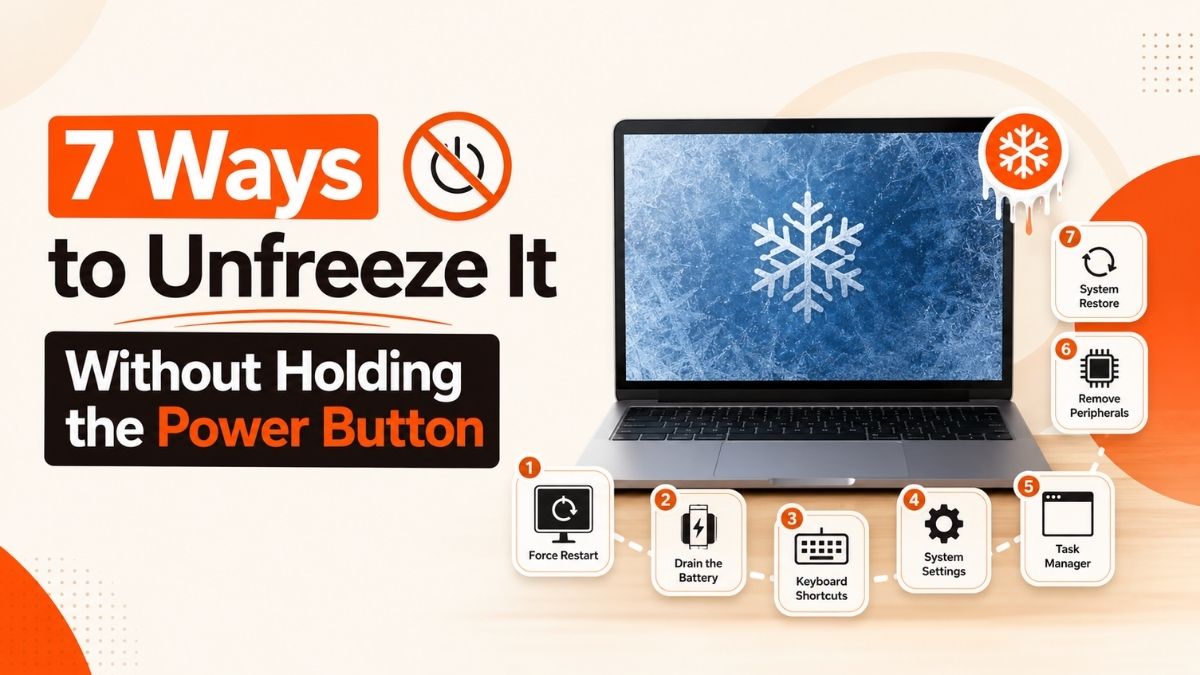
Laptop Screen Frozen? 7 Ways to Unfreeze It Without Holding the Power Button
A step-by-step recovery guide that saves your open files instead of forcing a hard shutdown
Quick Answer
Before you touch the power button, press Ctrl+Shift+Esc to launch Task Manager directly, or Windows key + Ctrl+Shift+B to force Windows to restart the graphics driver — your screen will flash black for a second and come back, and this alone fixes the majority of Windows 11 screen freezes. If neither responds, unplug any external mouse, keyboard, dock, or monitor, since a stuck USB device is the second most common cause. Only hold the power button down as a last resort, since that’s what risks losing unsaved work.
Get the Free 20-Minute Troubleshooting Checklist
A printable checklist for diagnosing freezes, crashes, and slowdowns before they turn into a full reinstall.
Send Me the ChecklistI’ve had this happen mid-sentence in a Word doc more times than I’d like to admit — the cursor stops blinking, the clock in the taskbar freezes, and every instinct says “just hold the power button.” Don’t. In almost every case there’s a way back into a live desktop, and I’ve listed every method I’ve personally used, in the order I try them, below.
Why a Laptop Screen Freezes in the First Place
A “frozen” screen almost always means one of three things is happening in the background, even though the display looks dead:
- A single application has stopped responding and is holding onto the graphics pipeline, which blocks the rest of the desktop from redrawing.
- A background process is pegging the CPU at 100%, which is the same root cause behind System Interrupts showing high CPU usage — the system is technically alive, it’s just too busy to respond to input.
- The disk is thrashing — Windows is waiting on storage reads/writes that are taking far longer than normal, which is common on a drive that’s nearly full or badly fragmented (see our guide on optimizing a slow SSD on Windows 11).
Overheating is another repeat offender. When the CPU or GPU hits its thermal limit, Windows throttles hard and the desktop can lock up for several seconds at a time. If your fan has been running loud right before the freeze, it’s worth reading what a loud, overheating fan usually means once your screen is responsive again. The same thermal spike is behind a lot of the reports I get about PCs shutting off mid-game — freezing is often the warning sign that comes right before a thermal shutdown.
This isn’t unique to laptops, either — the same “app stopped responding while the rest of the device is fine” pattern shows up on smart TVs when Wi-Fi-connected apps won’t load, which is a good sign that a soft reset of the stuck process, not a full power cycle, is usually the right first move on any device.
7 Ways to Unfreeze a Laptop Screen Without Restarting
Try these in order. Each one is non-destructive, so working through the list costs you nothing but a minute or two.
1. Give it 30 to 60 seconds before doing anything
Check the drive activity light on the laptop’s chassis (or the disk icon in a connected dock). If it’s blinking, Windows is still working — a pending update install, a Windows Defender scan, or a large file operation can lock the UI thread for up to a minute on a mechanical or heavily used drive. Interrupting this with a hard reset is what actually causes file corruption, so this step alone prevents more damage than it seems to.
2. Press Ctrl + Shift + Esc to jump straight to Task Manager
This shortcut opens Task Manager directly, without going through the security screen, and it works even when Ctrl+Alt+Delete doesn’t because it uses a lighter-weight system call. Look at the CPU and Disk columns sorted highest first — whatever app is at 90%+ is almost always your culprit. Click it, then End Task.
3. Press Ctrl + Alt + Delete for the security screen
If Ctrl+Shift+Esc doesn’t respond, try the classic combo. This brings up a full-screen menu with Lock, Switch User, Sign Out, Task Manager, and a Power icon in the corner — reaching this screen confirms the OS kernel is still responsive and only the desktop shell has stalled, which is a good sign.
4. Restart just the graphics driver: Windows key + Ctrl + Shift + B
This is the shortcut most people have never heard of, and it’s the one that fixes freezes caused by a stuck GPU driver — a display glitch, a black screen with the cursor still visible, or a game that locked up the whole desktop. You’ll hear a short beep (if your speakers are on) and see the screen flash black for about a second while the driver reloads. Nothing else on your system restarts and no open work is lost.
5. Unplug every external device
A misbehaving USB mouse, a docking station, an external monitor, or even a printer left connected can hang the whole input stack. Unplug everything except the charger and give it a few seconds — if the screen unfreezes, plug devices back in one at a time to find the culprit. This is also the first thing to check if your keyboard has stopped responding on Windows 11 alongside the freeze, since a USB controller conflict often takes out both at once.
6. Try Alt + Tab to see if it’s one app, not the whole system
Hold Alt and tap Tab. If the app-switcher overlay appears, only the foreground application has crashed, not Windows itself. Tab to a different window, close the frozen app from there, and you’ve avoided a reset entirely.
7. Sleep and wake the laptop (lid close, or Windows key + L then back in)
Locking the session with Windows key + L, waiting ten seconds, then unlocking sometimes clears a stalled display session without touching anything else. On a laptop with a working sleep state, closing and reopening the lid can do the same thing by forcing a full display re-init.
Which Method Should You Try First?
| Method | Data Loss Risk | Best For |
|---|---|---|
| Ctrl+Shift+Esc | None | One app hogging CPU/memory |
| Win+Ctrl+Shift+B | None | Black screen, GPU glitches, driver stalls |
| Unplug peripherals | None | Mouse/keyboard/dock unresponsive too |
| Wait it out | None | Drive activity light is blinking |
| Alt+Tab | None | Confirming it’s one app, not the whole OS |
| Hold the power button | High — unsaved work is lost | Absolute last resort only |
A Quick Visual: What to Try, in Order
What If It Freezes Before You Even Reach the Desktop?
If the freeze happens at the lock screen or sign-in screen, none of the shortcuts above will help since the full desktop shell hasn’t loaded yet. In that case, hold the Shift key and click the Power icon in the bottom-right corner, then choose Restart. Holding Shift forces Windows into a clean restart into the Windows Recovery Environment instead of a normal boot, which gives you access to Advanced Options, Startup Repair, and System Restore without ever needing to force-hold the physical power button.
This is also the entry point if you suspect the freeze is tied to a corrupted update. From Advanced Options, go to Troubleshoot, then Advanced Options again, then Startup Repair, and let Windows scan and fix system files automatically.
Task Manager Fix vs. Forced Power Button Reset
Task Manager / Driver Restart
✔ Keeps unsaved work in other open apps
✔ Takes seconds, no reboot
✔ No risk to the file system
✘ Won’t help if the OS kernel itself has hung
Forced Power Button Reset
✔ Works even if the whole system is locked up
✘ Any unsaved work is lost
✘ Skips the file system’s normal shutdown checks
✘ Repeated hard resets can contribute to disk errors over time
Stopping It From Happening Again
Once you’re back up and running, a few checks go a long way toward making this a one-time event:
- Update your graphics driver from the manufacturer’s site (Intel, NVIDIA, or AMD) rather than relying only on Windows Update, since GPU vendors usually ship freeze fixes faster.
- Free up storage space — Windows needs a healthy amount of free space on your system drive to manage virtual memory and temp files properly; if your drive is nearly full, this alone can cause repeated freezing.
- Trim your startup apps in Task Manager’s Startup tab. Too many background apps competing for resources at boot is a common, overlooked cause of early-session freezes.
- Run a malware scan with Windows Security. Some malware causes exactly this symptom by spawning processes that spike CPU usage in the background.
- Keep an eye on thermals if freezes cluster around gaming or heavy workloads — a laptop that’s freezing under load and running hot needs its fans and vents checked before anything software-side.
If the freezing keeps happening after all of this — especially if it’s paired with unusual noises, a burning smell, or the laptop not powering back on at all — that’s a hardware-level issue, and it’s worth having a certified technician check the motherboard, RAM seating, and battery health rather than continuing to troubleshoot it yourself. Anything involving opening the chassis, reseating internal components, or a BIOS flash carries real risk of permanent damage if done incorrectly, so that’s the point where I’d stop and hand it to a professional.
FAQ
Will I lose my work if I hold the power button?
Yes, in almost every case. Anything you haven’t saved in an open document, browser form, or unsaved draft is gone the moment power cuts, because the operating system never gets the chance to flush that data to disk.
What does Ctrl+Shift+Esc actually fix?
It opens Task Manager without going through the full security-screen process, which is faster and works in more freeze scenarios. From there you can end the specific process that’s stuck, without touching anything else running on the machine.
Why does my screen go black but the laptop is still on?
This is usually a graphics driver stall rather than a full system freeze. Press Windows key + Ctrl+Shift+B to force the driver to restart — you should hear a beep and see the screen flash before recovering.
My keyboard and mouse are frozen too — what now?
Unplug every USB device, including docks and external monitors, then wait a few seconds. A stuck USB controller can take down input across the whole system even though Windows itself is fine.
Is a frozen screen a sign of a dying laptop?
Not usually on its own. Occasional freezes are typically software-related. Frequent freezing combined with overheating, unusual fan noise, or shutdowns under load points to a hardware issue worth having checked professionally.
Conclusion
A frozen screen feels like an emergency, but the power button should be your last option, not your first. Work through Ctrl+Shift+Esc, the graphics driver restart shortcut, and unplugging peripherals first, and you’ll recover a working desktop without losing whatever you had open. If freezing becomes a regular occurrence, treat it as a signal to check your drivers, storage space, and startup apps rather than something to just reboot your way past every time — and if it’s paired with real hardware symptoms, bring in a professional before you start opening the case.